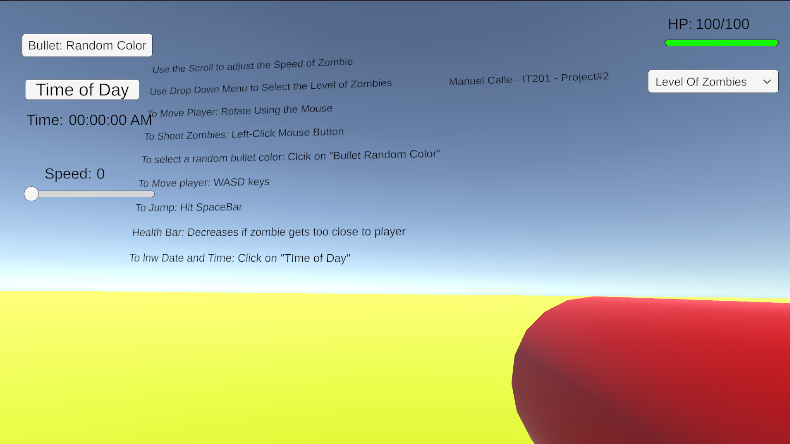
Manuel Calle - Project 2 (Update)
Project 1 Features:
Feature 1: The Player Shoots from a Gun towards Zombies
Input: Use the Left-Click Button to Shoot Bullets from Gun
Process: When the Left-Click mouse button is shot, zombies will disappear. Using the conditional (if) statement to detect whether the button is pressed. If the bullet touches the zombie, both Game Objects are destroyed.
Output: The bullet travels in a single direction, if the zombie is hit, the zombie is destroyed.
Feature 2: The FPV movement of the player moves as the Mousepad or Mouse is moved in any direction
Input: The Mousepad or Mouse is used to rotate and/or move the player viewpoint from side to side in order to locate the direction in which the weapon is shot
Process: The use of Vectors and Transform.position will help attain the movement, especially when the mousepad itself, even using smooth graphics to help the rotation from up, down, left, right and all around be smooth with transition. This overall movement should be a variable connecting both the movement of the camera and gun.
Output: The camera or direction of the FPV of the player will rotate in any direction along with the gun while the mouse is moving.
Feature 3: The Speed of the Zombie will increase based on the Scroll Adjustment
Input: Adjust the Scroll for the Speed of the Zombie
Process: Using "Transform.Position" and "Vector3.MoveTowards", as well as a conditional statement (if) as to adjust the speed of the zombie, will help the zombie spawned increase their speed (The adjustment should be 0 to 1 in floats (decimals of speed))
Output: The zombie will move forward towards the player depending on the speed chosen by the player during the game.
New Project 2 Features:
Feature 4: The amount of Zombies can be adjusted by the Drop Down Menu
Input: Adjust the Drop Down Menu on the number of zombies spawned (Max 50)
Process: The use of index will be helpful to select the options for the Level of zombies, along with the if conditional GameObject that are required to connect to the amount of zombies randomly spawned.
Output: The number of zombies are spawned based on the number chosen by the DropDown Menu, and therefore the zombies will come towards the player, and the player needs to shoot them in order to destroy them.
Feature 5: Movement of Player with Keys
Input: The user should be able to press down the WASD keys on their keyboard and each is assigned to how the player moves
Process: The use of GetRawAxis and variables such as Vectors to apply towards the movement of the player and the use of MathClamp to help limit the movement of the camera when the player drags their mouse.
Output: The player gameObject along with the camera will move simultaneously while the user uses the keys such as Forward(W), Backward(S), Left(A), Right(D).
Feature 6: Random Color Generator Button
Input: The user clicks a button that assigns a random color to a GameObject
Process: The use of the GameObject in which the color will change. The use of Mesh Renderer and Random function will apply towards helping the Mesh Renderer of the GameObject to update based on the list of random values (x, y, z) assigned due to the random function.
Output: The gameObject color (Bullet) will change color every time the UI Button is pressed, and thus the random color is applied to the mesh renderer of the object, and therefore it becomes a random color
Feature 7: Digital Clock & Date Button
Input: When user clicks a button, the time and date shows up on the screen
Process: The use of conditionals and DateTime.Now is applied when needing the clock to update based on the time, the UI Button also affects the time when the button is clicked. The conditional also updates whether the time is morning (AM) or afternoon (PM) based on the string variable.
Output: The digital clock shows the time and date in which the user is playing the game during the night or day, while also updating the clock through its amount of seconds, minutes, and hours.
Feature 8: Collision Health Bar for Player
Input: When user has the player collide with the zombies, their health bar slider decreases
Process: The use of conditionals, string variables, and assigned tags (Ontrigger) will help assign the player and zombie to only be affected by the tags placed on it. As well as updating the text “100/100” to decrease when colliding. Furthermore, the use of integers helps decrease the amount of in the health bar, and is shown visibly.
Output: The health bar slides move from right to left from each collision. The string value of HealthStats updates by subtracting by 20, and therefore, “100/100” becomes “80/100” based on singular collision.